OpenCode
OpenCode Custom Provider API Guide
Configure OpenCode Desktop to call models through the OurToken API proxy and use your OurToken account balance in about 3 minutes.
Prerequisites: three values you need
With a short OpenCode configuration, your local OpenCode Desktop can call models through the OurToken API proxy and use your OurToken account balance.
The full setup takes about 3 minutes.
OurToken provides multiple large language model APIs, including:
- GPT models at about 20% of the official price
- Claude models at about 40% of the official price
- Discounted API pricing for DeepSeek, MiniMax, GLM, and other models
Visit the OurToken website to check supported models and the latest prices.
| Item | Example | How to get it |
|---|---|---|
| Base URL | https://api.ourtoken.ai/v1 | Copy directly |
| API Key | Your OurToken API Key | Create it on the API Keys page |
| Model | gpt-5.5 | Check available model names on OurToken |
Important
The Base URL should be exactly:
texthttps://api.ourtoken.ai/v1Do not append
/responsesor any other API path. OpenCode adds the request path automatically.
Step 1: Install the latest OpenCode Desktop
Open the official OpenCode download page:
Download and install the version for your operating system.
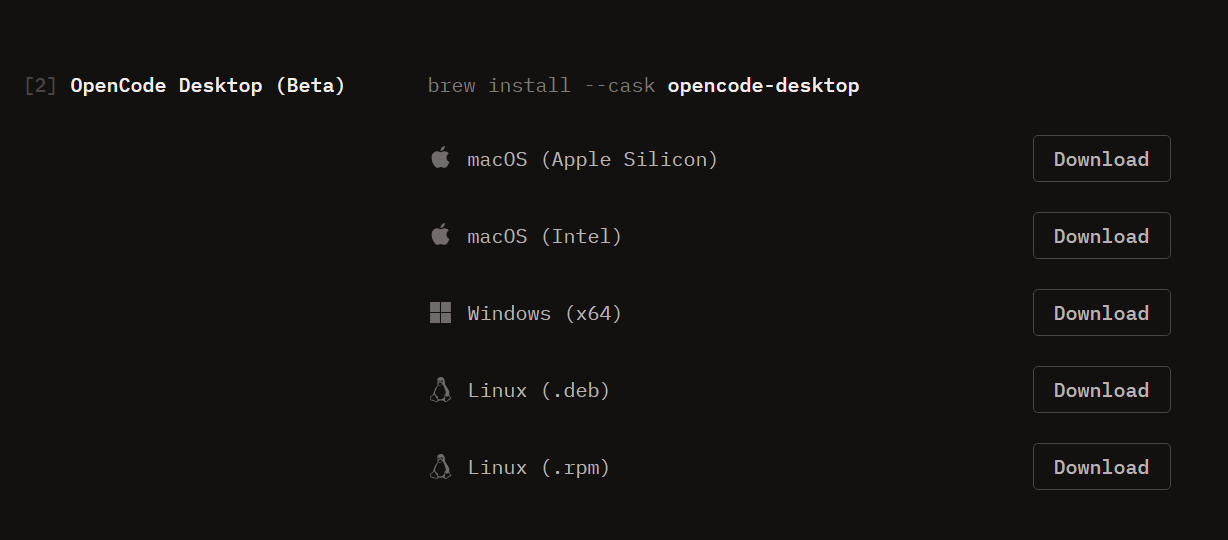 OpenCode download page
Step 2: Configure Custom Provider
Open OpenCode Desktop and go to the Provider settings page.
Choose Custom Provider, then fill in:
| Field | Value |
|---|---|
| Provider Name | OurToken |
| Base URL | https://api.ourtoken.ai/v1 |
| API Key | Your OurToken API Key |
| Model | gpt-5.5 |
Save the configuration.
If you cannot find the Custom Provider entry, confirm that you have installed the latest OpenCode Desktop version.
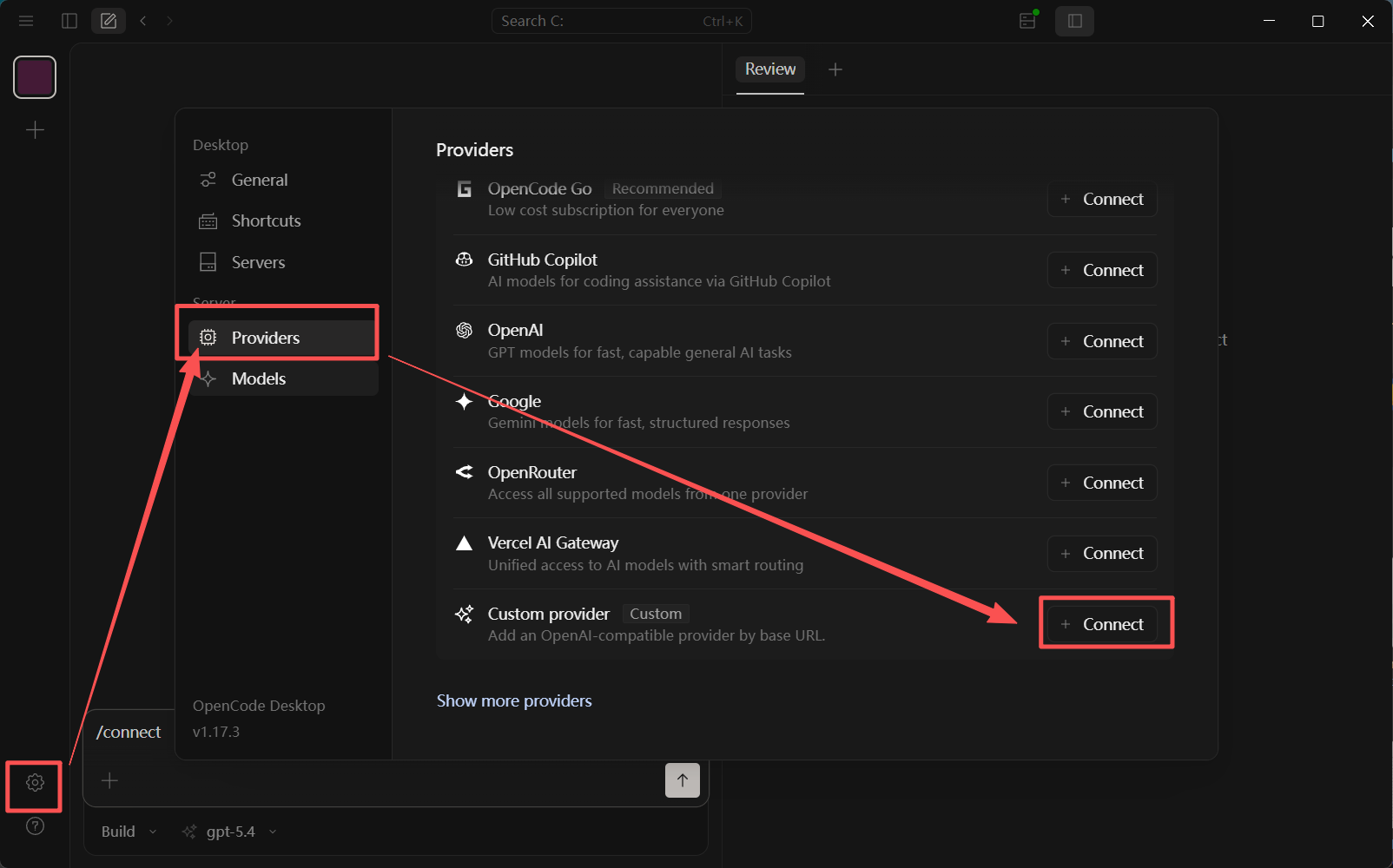 Custom Provider entry
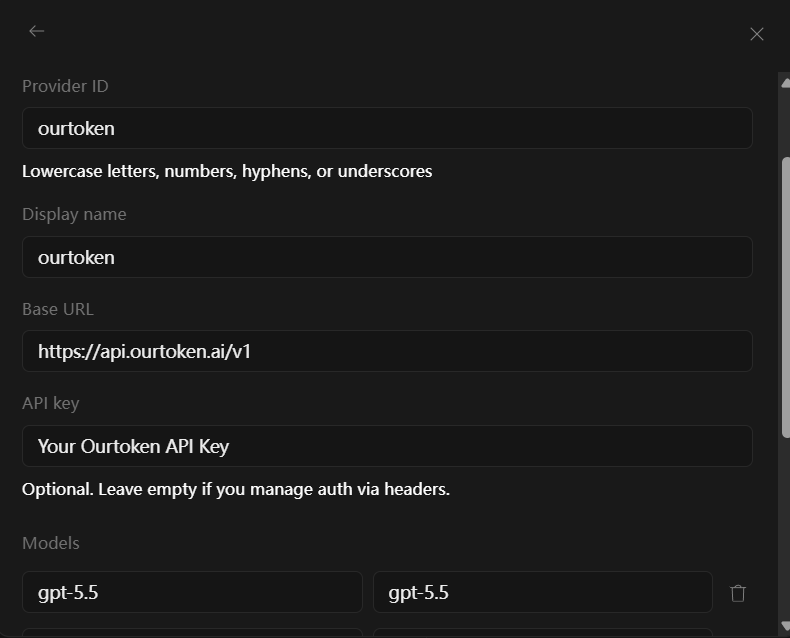 OurToken API configuration
Step 3: Select Provider and model
Return to the OpenCode chat interface and select the Provider you just added:
OurToken
Then select the model you want to use, for example:
gpt-5.5
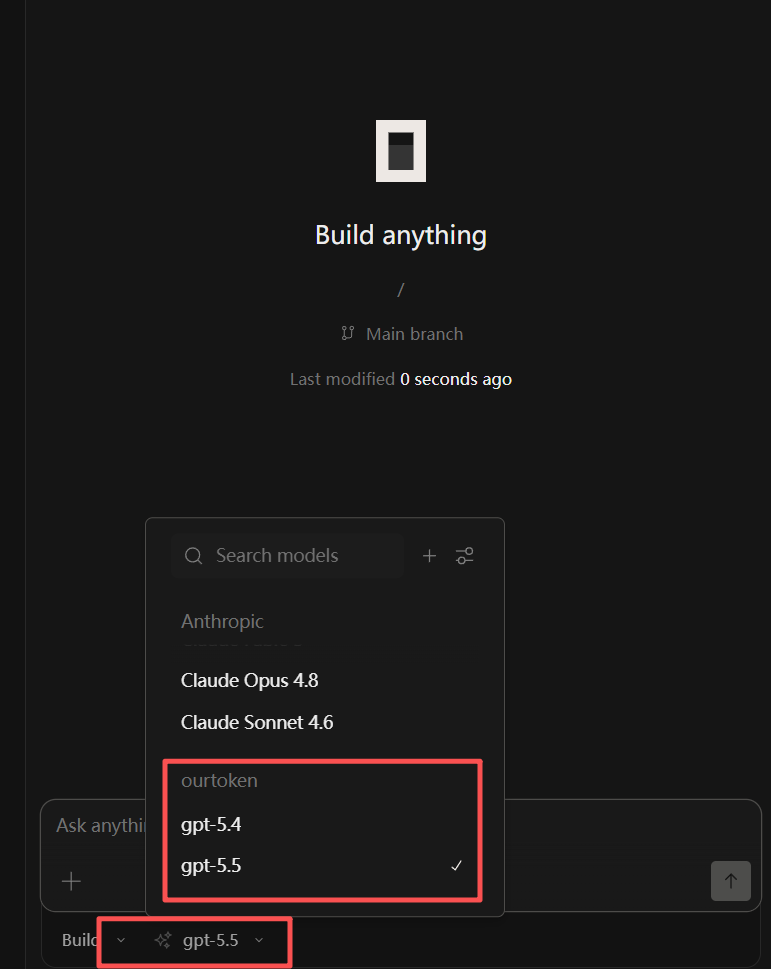 Select Provider and model
Step 4: Test the API connection
In the OpenCode chat interface, send a simple test message:
Hello
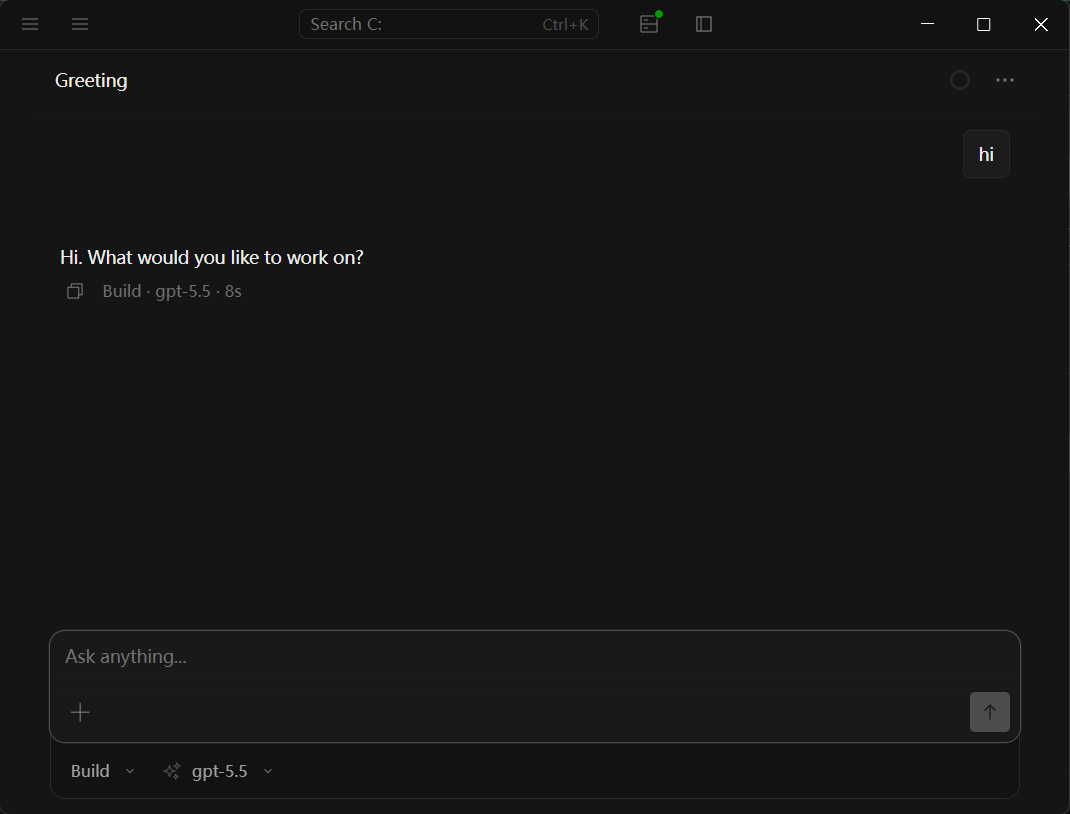 OpenCode model reply
If the model replies normally, OpenCode is connected to the OurToken API.
You can also open the OurToken Dashboard to check API request history and token usage.
- ✅ OpenCode replies normally: the API connection is ready
- ❌ OpenCode does not reply: check the Base URL, API Key, and model name
Setup complete
You can now use GPT, Claude, DeepSeek, MiniMax, GLM, and other supported models in OpenCode through OurToken.